
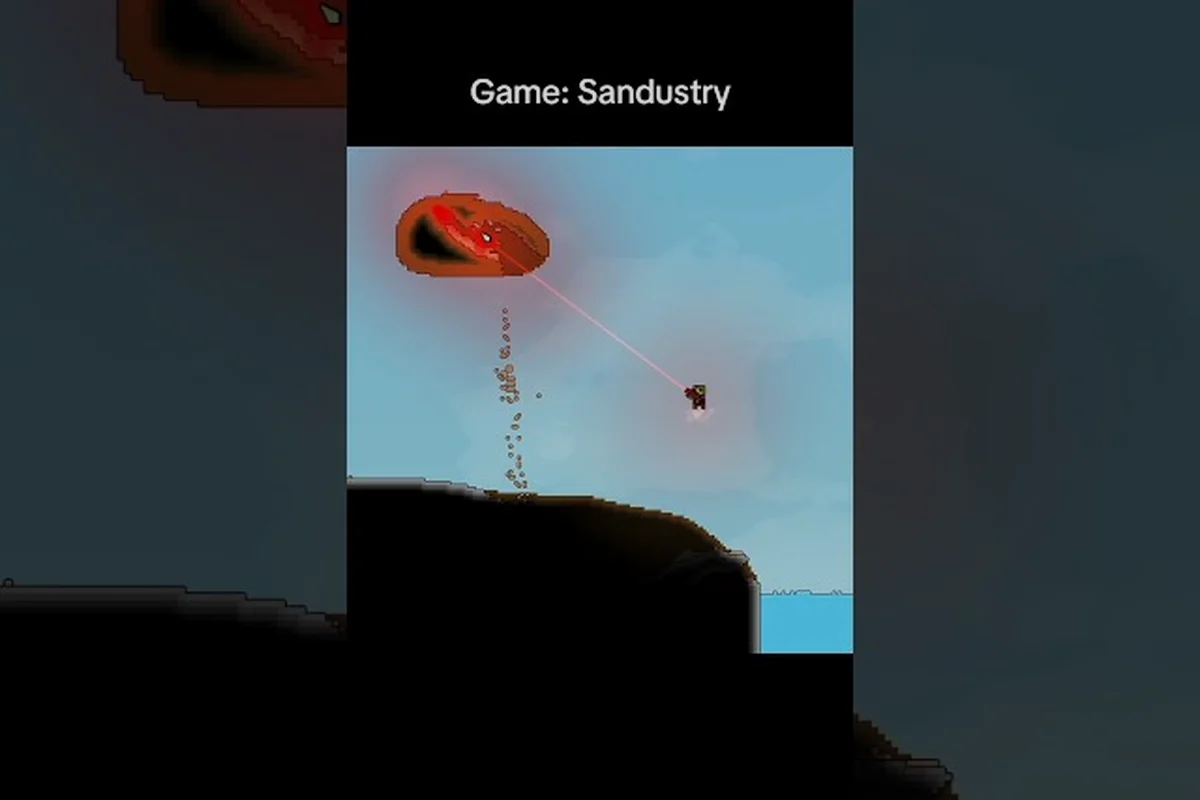
If you own a Steam Deck and have been eyeing Sandustry, you are probably wondering whether this pixel-based factory game runs smoothly on Valve's handheld. The short answer is yes, but the full picture involves a few tweaks, some controller mapping decisions, and an understanding of how the game's physics simulation behaves on lower-power hardware. Because every grain of sand in Sandustry simulates independently, the CPU load can spike dramatically when you unleash large-scale mining operations, which makes performance tuning on the Steam Deck genuinely important rather than just a nice-to-have. Get the latest performance data, verified controller layouts, and platform support details below so you can start automating production chains without fighting your hardware.
Sandustry Steam Deck Performance Overview
The Steam Deck's custom AMD APU handles Sandustry surprisingly well at default settings, but the game's pixel simulation engine demands more from the CPU than the GPU. According to community reports on r/SandustryGame, players consistently achieve 45-60 FPS during early-game exploration, though frame rates dip into the 30s when large sand collapses trigger massive physics cascades. The official Sandustry on Steam page lists minimum requirements of an Intel Core i5-4670K or AMD FX-8100, which the Steam Deck's Zen 2-based processor comfortably exceeds, so the bottleneck rarely comes from raw processing power.
What actually matters for Steam Deck performance is thermal management and power draw, because the handheld's 15W TDP cap can throttle the APU during extended sessions. Players who cap the frame rate at 40Hz through the Steam Deck's built-in settings report the most stable experience, since this reduces sustained CPU load while keeping the simulation responsive. The Steam Deck's 800p display also works in your favor here, because Sandustry's pixel art style scales beautifully at lower resolutions without losing visual fidelity.
| Setting | Steam Deck Default | Recommended | FPS Impact |
|---|---|---|---|
| Resolution | 1280x800 | 1280x800 | None |
| Frame Rate Cap | 60 FPS | 40 FPS | +10-15% stability |
| TDP Limit | 15W | 12W | +20-30 min battery |
| Pixel Simulation Quality | High | Medium | +5-8 FPS in heavy scenes |
| V-Sync | On | Off | Reduces input lag |
Battery life during Sandustry sessions lands around 2.5 to 3.5 hours depending on your TDP settings, which is respectable for a game with continuous physics calculations running in the background. If you plan on long automation sessions, consider lowering the TDP to 10W and accepting a 30 FPS cap, because the game's turn-based-ish pacing means you rarely need high frame rates for precise inputs.
Verified Steam Deck Compatibility Status
Valve's official compatibility program has not yet assigned Sandustry a formal rating, but the game runs through Proton without major issues based on community testing. The Proton Experimental branch handles the game's DirectX 11 rendering correctly, and no crashes have been reported in the current build as of August 2026. Some players have noted that the game's launcher screen requires a mouse click to dismiss, which is a minor annoyance on the Deck, but you can work around it by enabling the touchscreen or using the right trackpad as a mouse.
Controller Support and Button Mapping
Sandustry's controller support is functional but not perfect, because the game was designed primarily with mouse and keyboard in mind. The official controller layout on Steam includes full gamepad support for movement, camera control, and menu navigation, but building complex production chains feels noticeably slower with a controller compared to a mouse. Community members on r/SandustryGame have shared custom layouts that map the right trackpad to mouse input for precise block placement, which bridges the gap between gamepad comfort and mouse accuracy.
| Action | Default Controller Binding | Recommended Steam Deck Mapping |
|---|---|---|
| Move Camera | Left Stick | Left Stick (default) |
| Place Block | A Button | Right Trackpad Click |
| Mine Block | X Button | Right Trigger |
| Open Inventory | Y Button | Left Bumper |
| Build Menu | B Button | Right Bumper |
| Zoom | Right Stick Click | Left Trackpad (radial) |
The Steam Input layer gives you enormous flexibility here, because you can create per-game profiles that combine gamepad bindings with mouse-like trackpad input. Players who invest 10-15 minutes setting up a custom layout report that the controller experience becomes nearly as efficient as mouse and keyboard, especially for the early-game mining and crafting loops. If you prefer a more traditional setup, the game also supports the Steam Deck's built-in gyroscope for fine camera adjustments, though this takes some getting used to.
Community-Recommended Controller Layout
The most popular community layout assigns right trackpad as mouse, right trigger as left-click, and left trigger as right-click, which mirrors the desktop control scheme. This approach lets you navigate menus with the D-pad while using the trackpad for precise block targeting, and it works particularly well for the game's production chain setup mechanics where you need to place conveyors and machines in exact positions. You can download this layout directly from the Steam Community Layouts page by searching for "Sandustry Precision" in the controller configuration menu.
Mac and Linux Support Status
Beyond the Steam Deck, many players want to know whether Sandustry runs on Mac or Linux systems, and the answer depends on which platform you are using. The official Sandustry website confirms that the game is currently Windows-only at launch, but community testing has shown that Linux users can run the game successfully through Proton on both Steam Deck and desktop distributions. Mac users face a more complicated situation, because the game's DirectX 11 renderer does not translate cleanly to Apple's Metal API through translation layers like CrossOver or Whisky.
| Platform | Native Support | Proton/Translation | Playable? |
|---|---|---|---|
| Windows 10/11 | Yes | N/A | Fully supported |
| Steam Deck (SteamOS) | No | Proton Experimental | Yes, with tweaks |
| Linux Desktop | No | Proton 9.0+ | Yes, with tweaks |
| macOS (Intel) | No | CrossOver | Partial, unstable |
| macOS (Apple Silicon) | No | Whisky/CrossOver | Not recommended |
The Sandustry mac support situation is the most common source of confusion, because the game's Steam page does not list macOS as a supported platform, yet some players have gotten it running through translation layers. According to community reports, Intel Macs with CrossOver can run the game at low settings, but Apple Silicon Macs struggle with the DirectX-to-Metal translation and frequently crash during heavy physics scenes. If you primarily game on a Mac, your best option is to wait for a potential native port or use cloud gaming services, because the current translation layer performance does not meet the standards of a playable experience.
Linux Desktop Performance Notes
For Linux desktop users, the game runs through Proton with comparable performance to Windows on equivalent hardware, based on community benchmarks shared in the Sandustry Discord. The main issue Linux players encounter is the lack of native controller support outside of Steam Input, which means you need to configure your gamepad through Steam's controller settings rather than relying on the game's built-in detection. If you use an AMD GPU with Mesa drivers, you will experience the smoothest results, while NVIDIA users should ensure they are running the latest proprietary drivers to avoid rendering artifacts.
Demo Hotfix and Early Access Updates
The Sandustry demo received a significant hotfix in early 2026 that addressed several performance issues reported by players during the Steam Next Fest period. According to the official Sandustry - Demo Trailer and accompanying patch notes, the hotfix improved memory usage during long play sessions, fixed a crash that occurred when saving large worlds, and optimized the pixel simulation for lower-end hardware. These changes directly benefit Steam Deck players, because the memory optimization reduces the likelihood of the game being killed by the Deck's memory management when you have multiple apps running in the background.
| Hotfix Area | Issue Fixed | Impact on Steam Deck |
|---|---|---|
| Memory Usage | 30% reduction in RAM footprint | Fewer background app kills |
| Save Crash | Fixed crash on large world saves | Reliable session persistence |
| Physics Optimization | 15% faster simulation on low-end CPUs | Smoother sand collapses |
| Controller Detection | Improved gamepad recognition | Better plug-and-play support |
The Sandustry demo hotfix also introduced a settings option to reduce the pixel simulation resolution independently from the rendering resolution, which gives Steam Deck players a powerful tool for balancing performance and visual quality. Setting the simulation resolution to 75% while keeping the render resolution at 100% produces a noticeable frame rate boost with minimal visual difference, because the game's art style hides the reduced simulation detail well. This setting is particularly useful when you are exploring the Far Water region, where the combination of sand, water, and ice physics creates the heaviest simulation load in the game.
Early Access Roadmap and Future Optimizations
The Sandustry early access roadmap outlines several upcoming optimizations that will further improve Steam Deck performance, including a multi-threaded physics engine that will distribute simulation work across all CPU cores. The current build uses a single-threaded simulation loop, which is why the game's frame rate drops during massive physics events, but the rewrite shown in the official Simulation rewrite video demonstrates dramatically improved water and particle behavior. When this update ships, Steam Deck players should see a significant performance uplift, because the handheld's 8-core processor will finally be fully utilized.
Optimizing Sandustry for Steam Deck
Getting the best Sandustry steam deck experience requires a few targeted adjustments that go beyond the default settings. The most impactful change is disabling the game's built-in V-Sync and enabling the Steam Deck's frame rate limiter instead, because the game's V-Sync implementation adds input latency without providing meaningful visual benefits on the Deck's 60Hz display. You should also consider setting the Steam Deck's refresh rate to 40Hz and capping the frame rate at 40 FPS, which produces a perfectly even frame pacing that feels smoother than uncapped 45-50 FPS with frame time spikes.
-
Enable Proton Experimental in the game's compatibility settings to get the latest fixes and optimizations
-
Set the pixel simulation quality to Medium for the best balance of visual fidelity and performance
-
Disable the game's built-in V-Sync and use the Steam Deck's frame rate limiter instead
-
Lower the TDP to 12W to extend battery life without sacrificing playable performance
-
Use the community "Precision" controller layout for the most efficient building experience
-
Enable the touchscreen for menu navigation, since the game's UI responds well to touch input
The Steam Deck's suspend/resume feature works flawlessly with Sandustry, which is a huge quality-of-life win for a game that encourages long automation sessions. You can put the Deck to sleep mid-build and pick up exactly where you left off, because the game's single-player state saves cleanly without requiring a manual save first. This feature alone makes the Steam Deck the best portable platform for Sandustry, even compared to Windows handhelds that lack the same seamless suspend functionality.
Recommended Settings by Play Style
Your ideal settings depend on whether you prioritize battery life, visual quality, or maximum simulation fidelity. For casual exploration sessions, prioritize battery life with a 10W TDP and 30 FPS cap, which yields approximately 4 hours of playtime. For active building and automation, use the 12W TDP with a 40 FPS cap to maintain responsive controls while still getting 3 hours of playtime. For benchmark-style testing of your production chains, go with the full 15W TDP and uncapped frame rate to see how your factory performs at maximum simulation speed.
| Play Style | TDP | Frame Cap | Simulation Quality | Expected Battery |
|---|---|---|---|---|
| Casual Exploration | 10W | 30 FPS | Medium | ~4 hours |
| Active Building | 12W | 40 FPS | Medium | ~3 hours |
| Performance Testing | 15W | 60 FPS | High | ~2.5 hours |
Frequently Asked Questions
Is Sandustry officially verified for Steam Deck?
Sandustry isn’t officially verified by Valve yet, but community tests show it runs smoothly via Proton Experimental. The only real hiccup is dismissing the launcher—use the touchscreen or trackpad. The developer has confirmed Steam Deck support on the 2026 roadmap and is actively refining it.
Does Sandustry have native Mac support?
No, Sandustry is currently Windows-only, and the official website does not list macOS as a supported platform. While some players have gotten the game running on Intel Macs through CrossOver, performance is unstable, and Apple Silicon Macs experience frequent crashes. If you primarily play on Mac, consider waiting for a potential native port or using a Windows machine.
What is the best controller layout for Sandustry on Steam Deck?
The community-recommended "Precision" layout maps the right trackpad to mouse input, the right trigger to left-click, and the left trigger to right-click. This setup combines gamepad comfort with mouse-like accuracy for precise block placement. You can download this layout from the Steam Community Layouts page by searching for "Sandustry Precision" in the controller configuration menu.
Will the physics engine rewrite improve Steam Deck performance?
Yes—the multi-threaded physics rewrite should noticeably boost Steam Deck performance. By spreading simulation across all CPU cores, it prevents frame drops during large collapses or explosions, as shown in our official rewrite video. This lands with the Sandustry early access roadmap.
Can I use mods on the Steam Deck version of Sandustry?
Yes, mods work on Steam Deck, but you'll need desktop mode to drop files into Sandustry's folder. Most mods run fine since they're platform-agnostic, though heavy ones may need lower simulation quality for stable frame rates. Check the community mods guide for step-by-step setup.